> ## Documentation Index
> Fetch the complete documentation index at: https://docs.fitup.health/llms.txt
> Use this file to discover all available pages before exploring further.

# การเพิ่มสมาชิกเข้าตารางคลาส (Add Schedule Participants)

> เพิ่มสมาชิกเข้าร่วมตารางคลาสออกกำลังกายโดยตรงผ่านระบบบริหารจัดการฟิตเนส
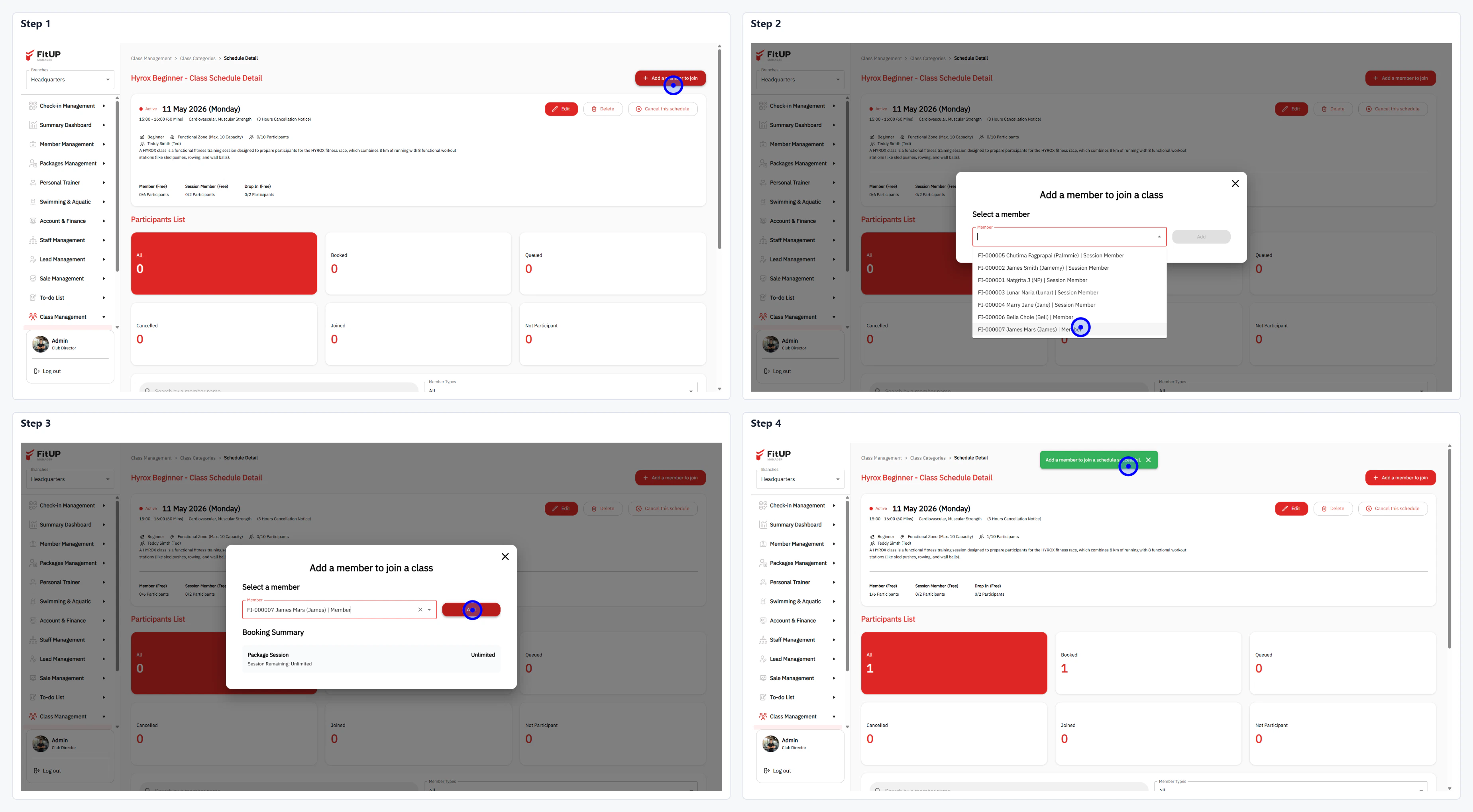
<img src="https://mintcdn.com/fit-up/XE3yo4h9ROn-3mZ3/images/add_schedule_participants.png?fit=max&auto=format&n=XE3yo4h9ROn-3mZ3&q=85&s=ba1662e86a796b55b32f1009a69e6b59" alt="การเพิ่มสมาชิกเข้าตารางคลาสในระบบบริหารจัดการฟิตเนส" title="การเพิ่มสมาชิกเข้าตารางคลาส (Add Participants)" lightAlt="การเพิ่มสมาชิกเข้าตารางคลาสในระบบบริหารจัดการฟิตเนส" darkAlt="การเพิ่มสมาชิกเข้าตารางคลาสในระบบบริหารจัดการฟิตเนส" className="dark:hidden" width="3696" height="2038" data-path="images/add_schedule_participants.png" />

<img src="https://mintcdn.com/fit-up/XE3yo4h9ROn-3mZ3/images/add_schedule_participants.png?fit=max&auto=format&n=XE3yo4h9ROn-3mZ3&q=85&s=ba1662e86a796b55b32f1009a69e6b59" alt="การเพิ่มสมาชิกเข้าตารางคลาสในระบบบริหารจัดการฟิตเนส" title="การเพิ่มสมาชิกเข้าตารางคลาส (Add Participants)" lightAlt="การเพิ่มสมาชิกเข้าตารางคลาสในระบบบริหารจัดการฟิตเนส" darkAlt="การเพิ่มสมาชิกเข้าตารางคลาสในระบบบริหารจัดการฟิตเนส" className="hidden dark:block" width="3696" height="2038" data-path="images/add_schedule_participants.png" />

<Steps>
  <Step title="ขั้นตอนที่ 1: เปิดหน้า Class Schedule Detail และเพิ่มสมาชิก" titleSize="h3">
    * คลิกที่ตารางคลาสใน **Class Schedule List** เพื่อเข้า **Class Schedule Detail**
    * คลิกปุ่ม **Add a Member** ที่มุมขวาบน
  </Step>

  <Step title="ขั้นตอนที่ 2: ค้นหาและเลือกสมาชิก" titleSize="h3">
    * ค้นหาสมาชิกในช่อง **Select a member** แล้วคลิกเลือกรายชื่อ
    * ตรวจสอบ **Booking Summary** ที่แสดงแพ็กเกจที่ใช้สำหรับการจอง
  </Step>

  <Step title="ขั้นตอนที่ 3: ยืนยันการเพิ่มสมาชิก" titleSize="h3">
    * คลิกปุ่ม **Add** เพื่อยืนยัน
    * จำนวน **Joined** ในหน้า Schedule Detail จะอัปเดตทันที
  </Step>
</Steps>
