> ## Documentation Index
> Fetch the complete documentation index at: https://docs.fitup.health/llms.txt
> Use this file to discover all available pages before exploring further.
# วิธีเปลี่ยนรหัสผ่านแอป FitUP Trainer (Change Password)
> วิธีเปลี่ยนรหัสผ่านในแอปเทรนเนอร์ฟิตเนส FitUP Trainer ผ่านเมนู Setting เพื่อความปลอดภัยของบัญชีเทรนเนอร์
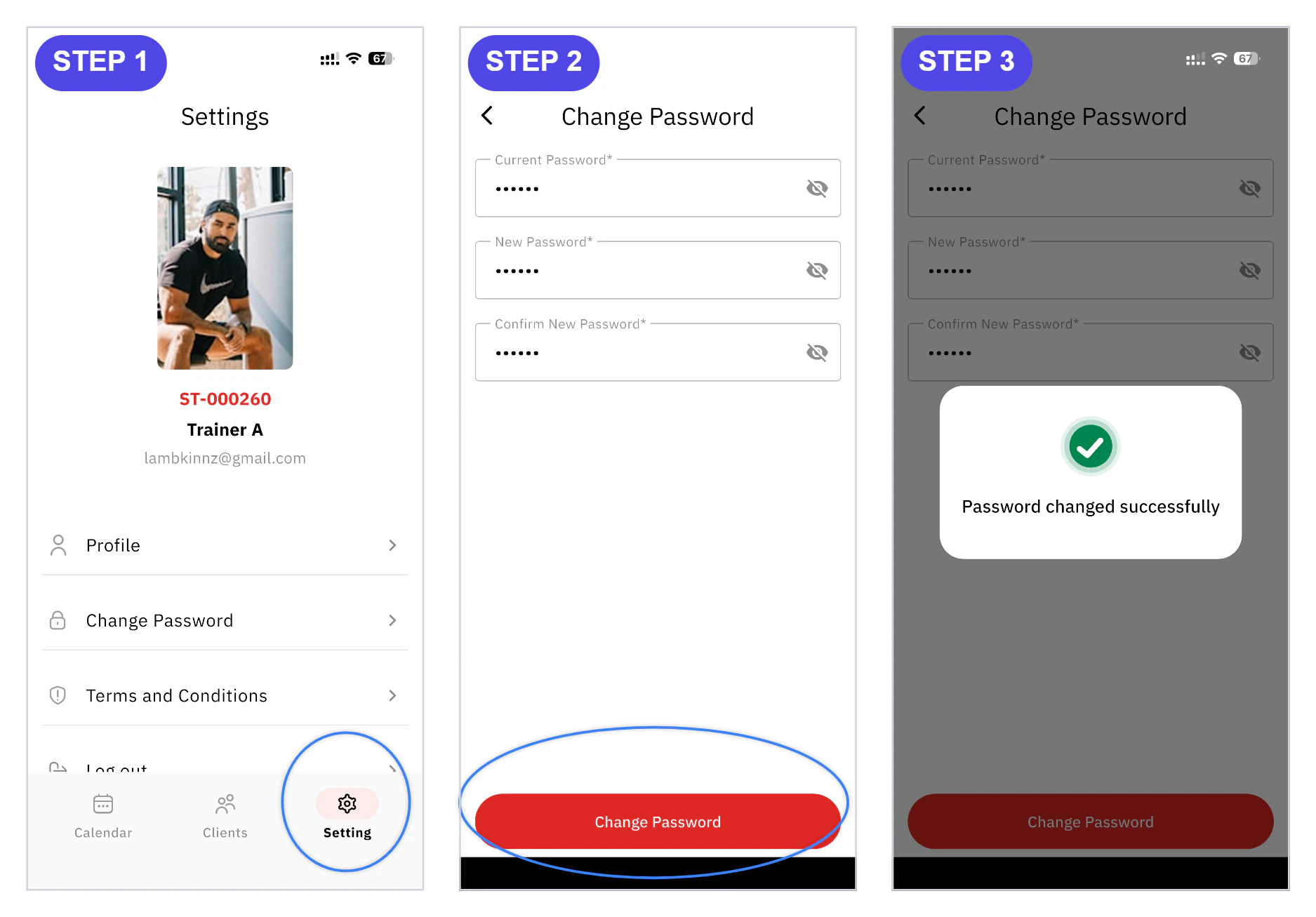 แตะไอคอน **Setting** ที่แถบเมนูด้านล่างของแอป ระบบจะแสดงหน้าโปรไฟล์ พร้อมเมนูย่อย เช่น Profile, **Change Password**, Terms and Conditions และ Log out จากนั้นแตะ **Change Password**
กรอกข้อมูลในช่องต่อไปนี้ให้ครบถ้วน แล้วกดปุ่ม **Change Password**
* **Current Password** — รหัสผ่านปัจจุบัน
* **New Password** — รหัสผ่านใหม่
* **Confirm New Password** — ยืนยันรหัสผ่านใหม่อีกครั้ง
ระบบจะแสดงข้อความ **Password changed successfully** หมายความว่าเปลี่ยนรหัสผ่านสำเร็จแล้ว
แตะไอคอน **Setting** ที่แถบเมนูด้านล่างของแอป ระบบจะแสดงหน้าโปรไฟล์ พร้อมเมนูย่อย เช่น Profile, **Change Password**, Terms and Conditions และ Log out จากนั้นแตะ **Change Password**
กรอกข้อมูลในช่องต่อไปนี้ให้ครบถ้วน แล้วกดปุ่ม **Change Password**
* **Current Password** — รหัสผ่านปัจจุบัน
* **New Password** — รหัสผ่านใหม่
* **Confirm New Password** — ยืนยันรหัสผ่านใหม่อีกครั้ง
ระบบจะแสดงข้อความ **Password changed successfully** หมายความว่าเปลี่ยนรหัสผ่านสำเร็จแล้ว